How to Convert Script to Storyboard Instantly Using AI (2025 Tutorial)
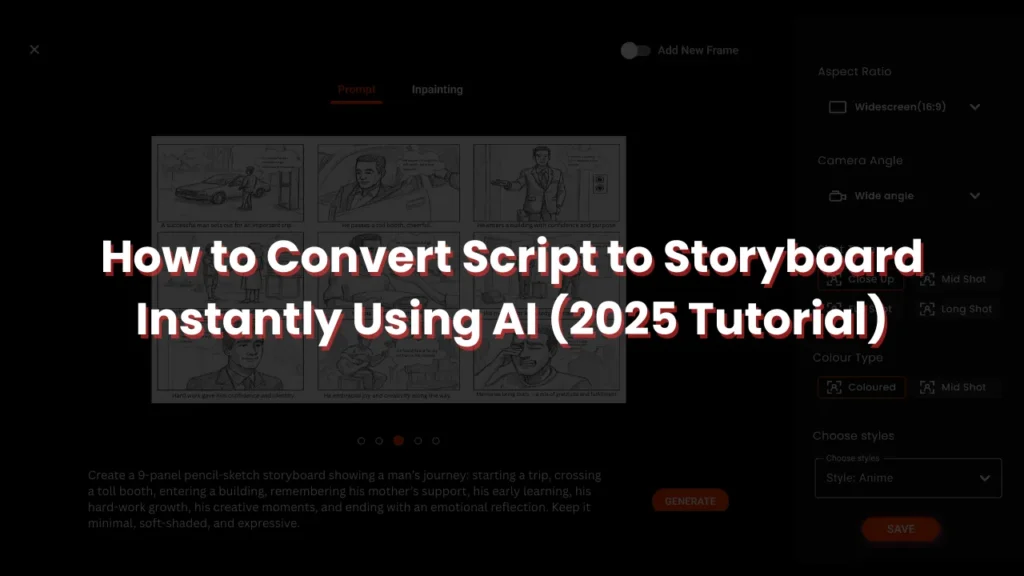
In 2025, visual creators no longer need to spend hours hand-drawing storyboard frames or hiring expensive artists to translate scripts into visuals. Thanks to AI storyboard generators, you can now convert script to storyboard instantly.
Whether you’re a filmmaker, marketer, YouTuber, educator, or brand creator, AI tools like Murphy make the storyboard creation process faster, smarter, and more accurate.
In this guide, you’ll learn how to turn any script into a storyboard using AI — step-by-step, with practical examples, pro tips, and common mistakes to avoid.
Why Convert a Script to a Storyboard Using AI?
Storyboarding is one of the most important pre-production steps. It clarifies the visual flow, camera movement, narrative progression, and emotional beats.
Here’s why using AI in 2025 is the smarter approach:
Instant Conversion
AI-generated storyboards Read your script, identify actions, characters, and scenes, and then generate storyboard frames in seconds.
No Drawing Needed
Creators who can’t sketch can now create professional-looking visuals effortlessly.
Better Character Consistency
AI models maintain the same character face, outfit, and style across all scenes — something manual artists struggle with.
Accurate Camera Shots & Scene Composition
Modern AI storyboarding tools understand cinematic language like:
- Close-up
- Medium shot
- Over-the-shoulder
- Wide shot
- Tracking shot
Perfect for Filmmakers, Advertisers, and Content Creators
Digital AI storyboards make client pitches, ad campaigns, brand videos, and scripts easier to visualize and approve.
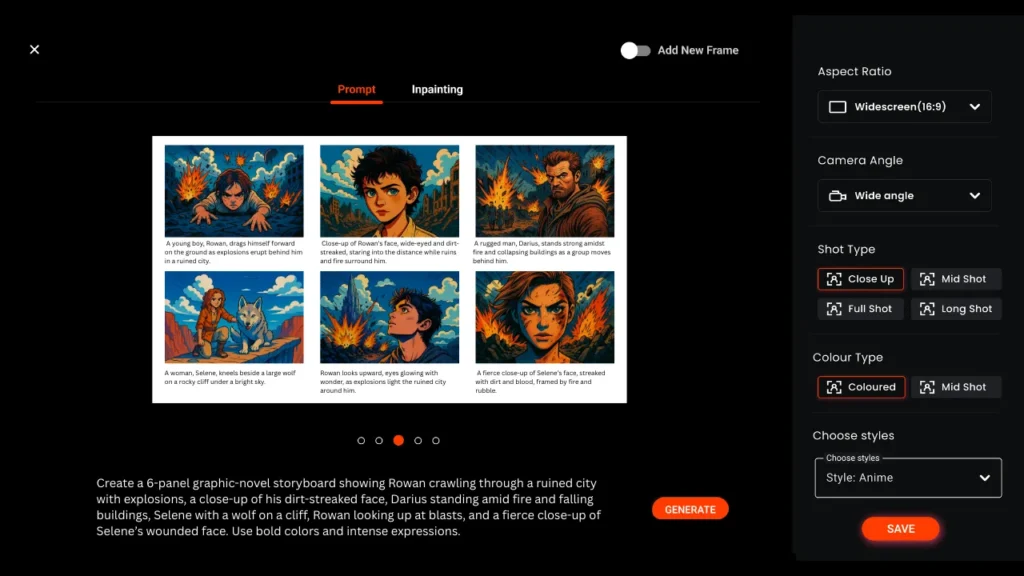
Tools You Can Use to Convert Scripts to Storyboards in 2025
Here are the types of tools commonly used:
AI Storyboard Generators
These convert raw text into structured storyboard frames.
AI Character Maker
Used to generate consistent visual characters for your scenes.
AI Shot Generator
Helps you design poses, angles, and scene composition.
AI Script Breakdown Tools
Automatically detects scenes, actions, props, and dialogues.
For this tutorial, we will use Murphy, as it offers script input, storyboard conversion, shot detection, and AI character consistency—all in one interface.
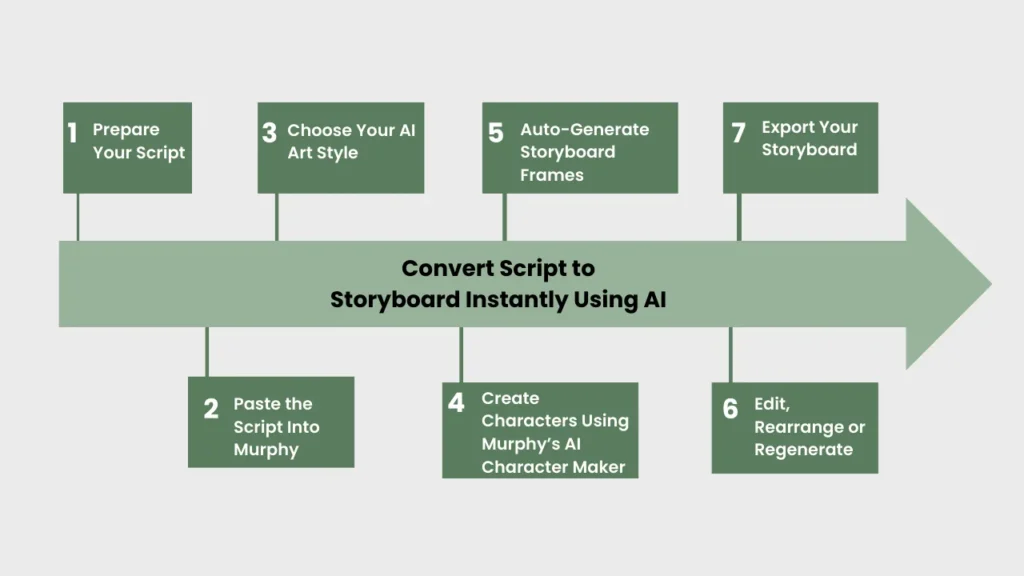
2025 Tutorial: Convert Script to Storyboard Instantly Using AI
Below is the full practical workflow you can follow
Step 1 – Prepare Your Script
Before uploading or pasting your script, break it into simple, clear scenes.
Example
Scene 1 | A girl opens a door and finds a glowing box on the floor. |
Scene 2 | She kneels, touches the box, and it starts floating. |
Scene 3 | A bright light fills the room, revealing a hidden portal. |
Pro Tip:
- Keep each scene 1–3 lines
- Mention characters and actions clearly
Step 2 – Paste the Script Into Murphy
Go to Murphy → Storyboard Maker → Convert Script.
Murphy will automatically:
- Read your script
- Detect scenes
- Identify characters
- Generate frame-by-frame descriptions
- Suggest camera angles
- Build panel layouts
This step saves hours of manual preparation.
Step 3 – Choose Your AI Art Style
Murphy lets you select a style for your storyboard:
- Cinematic
- Semi-realistic
- 3D render
- Anime
- Sketched / penciled
- Flat illustration
Choosing one style for the entire project ensures visual consistency.
Step 4 – Create Characters Using Murphy’s AI Character Maker
This is the most important part of achieving professional-quality storyboards.
Create a 20-year-old girl with long black hair, a denim jacket, a casual style, a confident expression, and soft lighting. |
Murphy will lock this character so every frame uses the same face and outfit.
Without this step, AI may generate random faces in every scene.
Step 5 – Auto-Generate Storyboard Frames
Once your script and character references are ready, click Generate Storyboard.
Murphy will create:
- Frame visuals
- Scene descriptions
- Camera notes
- Character placement
- Background design
- Emotional cues
- Action flow
Each frame becomes a clean storyboard panel.
Example output:
Frame 1: Medium shot of the girl opening the door, warm lighting, suspenseful mood.
Step 6 – Edit, Rearrange or Regenerate
Every frame can be adjusted:
- Change camera angle (wide, close-up, POV)
- Fix character poses
- Update facial expressions
- Modify background details
- Adjust lighting and mood
- Add or remove objects
This gives you full creative control while keeping AI speed.
Step 7 – Export Your Storyboard
Murphy lets you export in:
- JPG
- PNG
- MP4 storyboard slideshow
Perfect for:
- Client presentations
- Video ads
- YouTube content
- Film pre-production
- Brand visual workflows
Example Prompt to Convert Script to Storyboard
You can use this with Murphy for faster output:
Convert the following script into a full storyboard. Keep the character consistent, use a cinematic art style, use accurate camera shots, and break it into clear frames with action descriptions. Include lighting, mood, and scene composition in each frame. |
Add your script after the prompt.
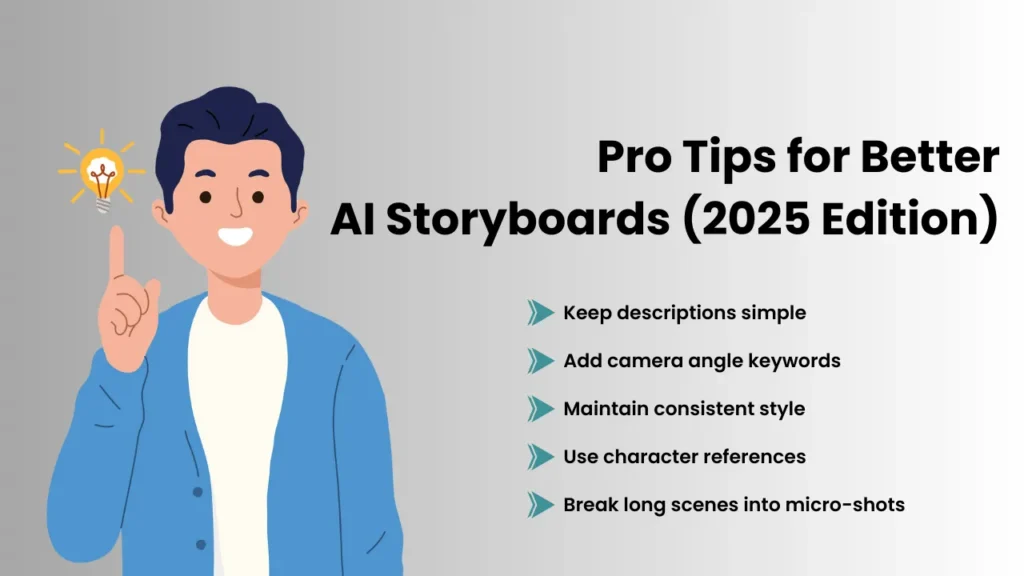
Pro Tips for Better AI Storyboards (2025 Edition)
Keep descriptions simple
AI works best with short, clear lines.
Add camera angle keywords
Example: “Close-up of girl touching glowing box.”
Maintain consistent style
Choose one art style for the full project.
Use character references
Upload or generate characters first.
Break long scenes into micro-shots
More frames = better visual storytelling.
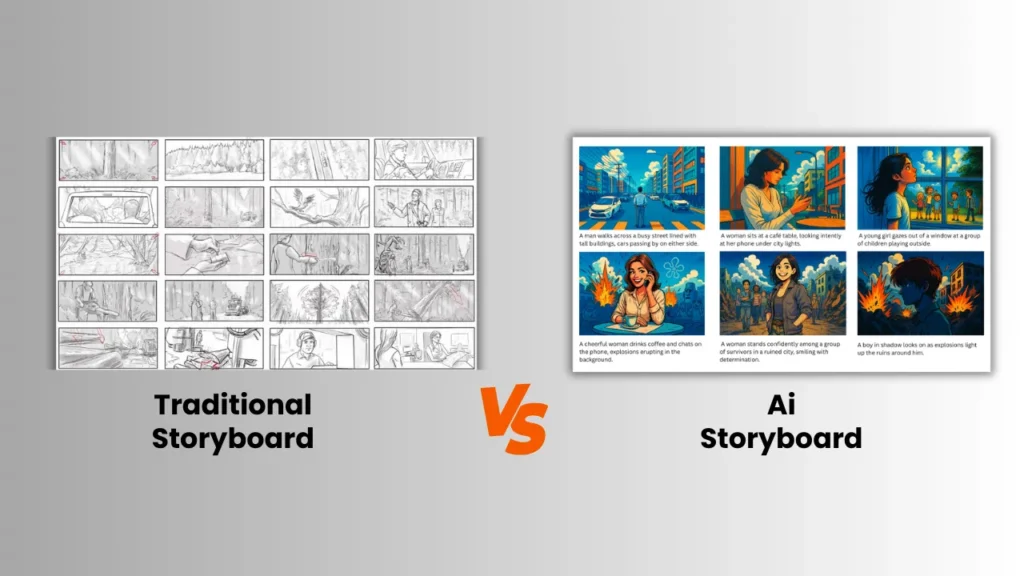
Traditional vs AI Storyboarding: A Quick Comparison
When it comes to planning visuals, creators today can choose between traditional hand-drawn storyboards and AI-generated storyboards. Both methods help visualize scripts, but the workflow, speed, and accuracy are completely different.
| Feature | Traditional Storyboarding | AI Storyboarding |
|---|---|---|
| Speed | Slow; requires hand-drawn frames one by one | Instant; AI generates full storyboards in seconds |
| Skill Requirement | Needs artistic skills or a hired storyboard artist | No drawing skills needed; AI handles visuals |
| Character Consistency | Varies based on artist’s precision | AI maintains consistent faces, outfits, and styles |
| Cost | Higher cost due to manual labor | More affordable; automated generation |
| Editing | Edits require redrawing scenes | Easy to edit, regenerate, or rearrange frames |
| Visual Styles | Limited to the artist’s style | Multiple styles like cinematic, 3D, anime, sketch |
| Accuracy | Depends on artist interpretation | AI follows script details and camera instructions |
| Use Cases | Films, animation studios, traditional production | Ads, YouTube videos, marketing, fast pre-production |
Common Mistakes Creators Should Avoid
- Adding too many details in one line
- Switching art styles mid-project
- Not defining characters clearly
- Forgetting to review continuity across frames
- Expecting AI to handle vague or poetic scripts
Murphy solves most of these automatically, but clarity is always key.
FAQs: What People Most Asks
How do I turn a script into a storyboard automatically?
Use an AI storyboard generator like Murphy. Paste your script, select a style, and the AI converts it into visual frames instantly.
What is the best AI tool to convert a script into a storyboard?
Murphy, StoryboardHero, and Boords AI are popular options, but Murphy provides the fastest script-to-storyboard conversion in 2025.
Can AI read my script and generate storyboard frames?
Yes. AI can analyze your script, identify scenes, characters, and actions, and generate storyboard frames automatically.
How accurate are AI-generated storyboards compared to manual ones?
AI storyboards are highly accurate, offering consistent characters, clear scene composition, and correct camera shots. But the prompt should be the perfect.
Can AI storyboard generators maintain character consistency?
Yes. Tools like Murphy include AI character makers that keep the same face, style, and outfit across all scenes.
Can I customize the art style of AI storyboards?
Absolutely. You can choose from cinematic, realistic, anime, sketch, 3D, and more, depending on your project.
What type of script format works best for AI storyboard tools?
Short, clear, scene-by-scene scripts with defined actions, characters, and emotions work best for AI.
Can AI generate camera angles like wide shots or close-ups?
Yes. Modern AI tools understand camera terms such as close-up, wide shot, POV, and over-the-shoulder angles.
Do AI storyboard tools support long scripts or full video scripts?
Yes. Most tools can handle long scripts, including ads, YouTube videos, short films, and full video scripts.
Can I edit or rearrange AI-generated storyboard scenes?
Yes. You can modify frames, change angles, fix poses, or reorder scenes to match your creative vision.
Can AI convert my storyboard into an animatic or video?
Many tools allow you to export your storyboard as an MP4 or animate frames to create a basic animatic.
How long does it take to generate a storyboard using AI?
Most AI tools generate a complete storyboard in less than a minute, depending on script length.
Is it safe to upload my script to an AI storyboard generator?
Yes, trusted tools like Murphy keep your data secure and do not share your script with third parties.
Do creators and brands use AI storyboards professionally?
Yes. AI storyboards are widely used by filmmakers, ad agencies, filmmakers, and YouTube creators for fast pre-production.
How can I improve the accuracy of AI-generated storyboard frames?
Use clear scene descriptions and consistent character references, and define camera angles to improve accuracy.

